


Verdict: Xiaomi AIoT Router AX3600
Our editorial rating is based on product testing.
- WiFi 6 support with OFDMA and 8x8 MU-MIMO
- presence of external antennas that can be positioned directionally
- dedicated antenna for Mi smart devices
- device size
- short power cable
- only 3 LAN ports
- no USB port
Not long ago, we brought you a review of a Xiaomi router with the model name AC2100. After our review, we kept it and still use it today—along with the older Mi Router 3G. This time, what landed in our editorial office was probably the most powerful router from the Chinese giant, branded as Xiaomi AIoT Router AX3600.
It comes with support for the latest IEEE 802.11ax standard (WiFi 6), a dedicated antenna for AIoT, and many interesting features. You can read how it performed in our test in this review.
Where to buy the Xiaomi AIoT Router AX3600?
We purchased the router from our partner DHGate, where it appeared at a record-low price. Thanks to delivery from the Polish warehouse, we had it at home within a few days, with no extra fees. Unlike the routers we’ve had so far, the Xiaomi AIoT Router AX3600 is available in a global version tailored for our market.
Xiaomi AIoT Router AX3600
 Free Shipping
TIPShipping is completely free.
For this product, shipping is available completely free of charge. However, this is the slowest delivery method, and the item may take 20 days to 1 month to arrive.
When you order from a Chinese warehouse, AliExpress adds a customs fee to your cart of about €3,70 per order. When you receive the package, you don’t pay anything extra.
Our extra service with VIP support — we’ll handle the order on Gshopper for you and ship it straight to your address.
If you’re not experienced with shopping on Gshopper, your payment won’t go through, or the coupon just isn’t working, we offer our readers and customers a service where we place the order directly to your address. You send us the money by bank transfer, and we’ll order the product straight to you. That way, you don’t have to worry about failed payments or coupon issues, and you can be sure the whole order will go 100 % smoothly. Plus, you automatically get our VIP support — we handle any shipment issues for you and help with claims too. The fee for this service is €15 on top of the product price. You can contact us by email at info(@)chinaplanet.sk or on Messenger, where we’re active all the time.
 Important: Place your order from DHgate exclusively via a computer or a smartphone browser—not through their app. Otherwise, the order may not go through correctly.
What will we find in the box?
The moment the courier delivered the package, we knew it wasn’t any compact, small router. That was obvious at first glance—a large box wrapped in protective packaging. On the box, you’ll find not only a photo of the router, but also all the key device features in English.

The router sits in the box in a plastic insert, and the protective film isn’t just on the router body itself, but on every single antenna. On the top side, the router is protected by a soft foam layer glued to the inner side of the box. In the package, you’ll also find the user manual, a power adapter, and an Ethernet cable. But their placement is quite unfortunate, because they literally fly around and bump into the router inside the box.

The power cable is similarly quite short, like with other Xiaomi routers—it’s 120 cm. The Ethernet cable included in the box is 100 cm long. The packaging is simple, but we would have welcomed better placement of the individual components inside the box.
Key features of the Xiaomi AIoT Router AX3600
The Xiaomi AIoT Router AX3600 is Xiaomi’s flagship router. Here you get support for the latest WiFi 6 standard (IEEE 802.11ax), which offers up to 2.7x higher data transfer speeds compared to the older WiFi 5 (802.11ac) version. Response time and signal coverage have also improved, especially when multiple devices are connected at the same time.

The router supports both the 2.4 GHz and 5 GHz bands. By combining these two bands, we reach a theoretical wireless transfer speed of up to 2976 Mbps. The 2.4 GHz band offers better transmission through obstacles like walls, resulting in better coverage in an apartment or house. On the other hand, the 5 GHz band provides low interference and significantly higher transfer speeds—but it doesn’t pass through walls and other obstacles as well. By combining both bands, you gain a huge advantage.

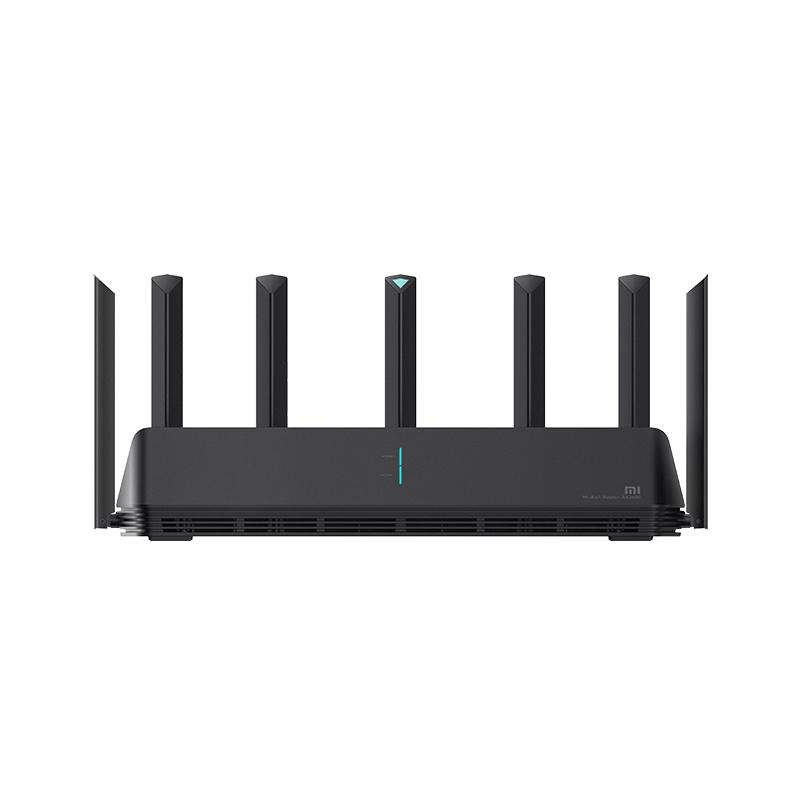
The router has up to 7 external antennas with PA and LNA amplifiers. 2 of them are for the 2.4 GHz band and 4 for the 5 GHz band. PA (Power Amplifier) amplifies the signal strength, so it can reach longer distances and even get through obstacles. LNA (Low Noise Amplifier) handles signal reception and allows the router to receive even weaker signals from devices that are farther away. The last, seventh antenna placed in the center is used exclusively for Xiaomi smart home devices.

The router’s memory has a capacity of 512 MB, and the maximum number of devices that can be connected simultaneously is up to 248. The OFDMA technology ensures more efficient data transfer to multiple devices. Its core mechanism is dividing a single channel into multiple sub-channels. Through these, the router can transmit several data units at the same time. This function is one of the biggest advantages of the AX3600 router and of the WiFi 6 technology itself. You can see a clear explanation in the video below:
WiFi 6 is also closely related to the 8×8 MU-MIMO feature. While with WiFi 5 and the AC2100 router we wrote about 4×4 MU-MIMO, using the AX3600 router allows up to 8 devices to receive and send data simultaneously on 8 streams.

Here you’ll also find support for mesh networking, where you can connect multiple routers for better coverage in larger spaces, a new version of WPA3 security, or the BBS feature, which reduces interference between other WiFi networks. There’s also parental control, a powerful quad-core Qualcomm A53 processor, or efficient heat dissipation.
First power-on and router setup
Since we have the global version available, the setup is very simple and the interface is in English both via the web interface—not just through the app. You can configure the router through a graphical interface using a web browser at router.miwifi.com (or using the pre-set IP address 192.168.31.1), or via a smartphone with the MiWifi app installed.
Both methods are identical when it comes to the initial settings. You can configure the router either over WiFi if you connect to the router’s WiFi network, or using an Ethernet cable.

If you use the smartphone app, there’s a smaller issue if you also have other Xiaomi routers in the Chinese version. Similar to the Mi Home app, MiWiFi can only work with one region. For this reason, we had to change the region in the app from China to any European country. The app will find the router even if you’re using a Chinese region, but it will prompt you to change it.

The first step in the app is choosing the mode in which the router should operate. Options include: the standard router mode for connecting to the internet, a wireless repeater, and a wired repeater. We chose the first option – the classic internet setup. We connected the cable from the internet provider to the WAN port and started the automatic setup. The router immediately detected the internet connection, and in the next step offered a choice of region, the WiFi network name, and password settings. The router creates 2 WiFi networks—one for the 2.4 GHz band and one for the 5 GHz band.


These WiFi networks can be combined by ticking the “Smart connect” option. With this option, the WiFi networks in both bands will have the same name, and devices will connect to the band that currently has the better signal.
WiFi 6 speed test
We tested WiFi speed using the Speedtest app on a Xiaomi Mi 10T smartphone. In the router, we had smart connect enabled, WiFi 6 on, signal strength set to the highest level, MU-MIMO enabled, and we were curious about the results. Our internet connection speed is 1 Gbit/s via fiber optics.
The first measurement was done right at the router, where we had a 100% signal. Download speed was 653.26 Mbps, and upload reached up to 793 Mbps, which is almost the value we typically measure on a computer connected via cable.

For the second measurement, we moved about 4 meters away from the router. There was a wall dividing the rooms between us and the router, but without a door. The speed dropped slightly, but not significantly.

Further measurements were taken at a distance of about 8 m, at the doorway of the room on the other side of the apartment. Between the router and us, there were 2 partitions. Here, the speed dropped compared to the first measurement by almost half.

Then we moved a bit further, to about 10 m, where we were separated from the router by 3 walls. The speed dropped to roughly the level of 200 Mbps.

In the farthest part of the apartment, where there were 3 walls and a few cabinets between us and the router, the line-of-sight distance was about 15 m. Here, the speed dropped rapidly and the smartphone switched to the 2.4 GHz WiFi network. However, this band is significantly interfered with by other WiFi networks in the apartment building.

As you can see, the speeds are decent, but with increasing distance and obstacles in the form of walls and furniture, the speed drops significantly. Our apartment is 70 m2, and this router is more than enough to cover it.
If we placed it in the middle of the apartment, we would get better coverage and higher speeds in each room, but since we wanted to test how the signal spreads through multiple walls, we positioned it in a less suitable spot, in an edge room.
Comparison with WiFi 5 and Xiaomi AC2100 router
Since we have access to several routers, we decided to compare the recently tested Xiaomi AC2100 with the AX3600 router. First, we compared the speeds on a computer that was connected by cable. They were almost completely identical.


Next, we tested WiFi. The AC2100 model does not support the newest version of WiFi 6, so in the settings of the Xiaomi AX3600 router we changed the mode from WiFi 6 to a WiFi 5-compatible mode, where WiFi 6 is disabled along with all its features such as OFDMA. We tested again using the Speedtest app on a Xiaomi Mi 10T smartphone from the same locations in the apartment as in the WiFi 6 test from the previous chapter.
First measurement in the immediate vicinity of the router:


Second measurement 4 m from the router with one wall, with no door as an obstacle:


Third measurement at a distance of 8 m with two walls as obstacles:


Fourth measurement 10 m from the router with three walls as obstacles:


Last measurement in the farthest part of the apartment (15 m) with multiple different obstacles:


Based on these measurements, you can see that the speeds with routers running on WiFi 5 are very similar. With the AC2100 router, however, you can see bigger differences between its download and upload, especially as the distance increases.
You can then compare the measured WiFi speeds with the AC2100 router to the speeds from the previous chapter to see what the difference is between WiFi 5 and WiFi 6 on the same router. It’s not a very big difference, and the up-to 2.7× improvement compared to WiFi 5 claimed by the manufacturer doesn’t come anywhere close.

For the conclusion, we also measured WiFi speeds using the Speedtest app on a Samsung Galaxy S9+ smartphone, which does not support WiFi 6. The test was carried out with WiFi 6 enabled on the AX3600 router. This test shows that it makes no sense to use a WiFi 6 router if you don’t also have devices that connect via WiFi with support for the latest standard. There’s no speed improvement, and the cost of buying a WiFi 6 router is higher.

WiFi signal strength
The signal strength and quality measurement using the WiFi Master app on the smartphone was interesting—especially, the AC2100 router did better. However, we couldn’t find any information in the router specifications about what antennas are built into them.
The following screenshots are from the AX3600 router, measured at three distances with WiFi 5 enabled: right next to the router, 5 m from the router behind one wall, and 10 m from the router with three walls as obstacles. With WiFi 6 enabled, the signal values were almost completely identical to those with WiFi 5; only the speed differed, so we provide only one version.


To our surprise, the signal in the same locations with the AC2100 router was better, even though Speedtest measured slightly higher connection speeds with the AX3600 router. In both cases, the phone was still connected to the 5 GHz band.


The app and settings of the Xiaomi AIoT Router AX3600
We already described the MiWifi app interface and the settings you can change in our AC2100 router review. If you’re interested, we recommend you read the full review. So we don’t keep repeating the same things, we’ll only mention the settings that are missing for the AC2100 router.


The Xiaomi AIoT Router AX3600 offers the option to connect additional routers into a mesh network. Right on the app’s home screen, you’ll find a device management option for these devices. In the WiFi settings, you can turn off the MU-MIMO feature, enable WiFi 5 compatible mode, or disable automatic searching for Mi smart devices, for which one antenna is dedicated. The router itself was also automatically added to the Mi Home app.


We have the same problem here as with other Xiaomi routers, where the app doesn’t contain all the available settings that are found in the web interface. So the app is not a full replacement for the graphical web interface in your browser.
Final verdict
The Xiaomi AIoT Router AX3600 is the Chinese giant’s latest router, offering support for the new WiFi 6 wireless standard and up to 7 external antennas, one of which is dedicated to Xiaomi smart devices.

The router works great, it’s easy to set up, and throughout the entire time we used it, we didn’t notice any connection instability or speed fluctuations. The router is a good choice if you have WiFi 6-capable devices at home.
If you don’t have any and use, for example, an AC2100 router or something similar, don’t expect major improvements in signal coverage or higher speeds. However, the advantages of this router can show up if a larger number of devices connect to it, which is usually not the case in a typical household.

In smaller apartments, the router’s size can also be a downside, since the device body itself measures up to 268 x 179 x 177 cm. The presence of only three LAN ports and the absence of a USB port are disappointing. With such dimensions, we would definitely expect more LAN ports.
Don’t miss the best coupons 📩
Subscribe and we’ll email you new coupons before they expire. We only send it once a month — no spam.


Discussion (8)
And what about the Xiaomi router AX6000? Difference?
The AX6000 is so far only available in the Chinese version, and the differences are minimal. The AX6000 has a higher theoretical speed of up to 6000 Mbps. We have more info here https://xiaomiplanet.sk/xiaomi-mi-aiot-router-ax6000-2/
What is the difference compared to the Xiaomi 3G router, and how true is it that it works better with Chinese software, especially in terms of range?
After your review, I decided to buy this router.
And I can say that it was probably a huge mistake: the signal is completely weak for such a device — a family house with 4 rooms: already in the second room the signal drops massively, and after 2 walls it doesn’t reach outside at all. Connecting a Samsung WiFi printer via WPS doesn’t even exist, I couldn’t find the WPS item anywhere in the settings. A Rowenta cordless vacuum cleaner — I can’t connect that at all. In short, this router is definitely not worth the money. I bought 2 units, also for a friend, and when I take his one, it’s exactly the same, so I ruled out a faulty unit.
when I go via the web to 192.168.31.1 it asks for the admin password. And where am I supposed to get it from, if it’s not on the label?!
With Xiaomi/Mi routers, the admin password is normally not printed on the label — it’s the password you entered during the initial setup via the Xiaomi Home app (or via the web during the router’s first launch). If you don’t remember it, or if you bought the router second-hand, the easiest thing is to reset it to factory settings (hold the Reset button on the back for about 5-10 seconds until the LED flashes), and then set up the router from scratch again, including a new password.
I can’t connect via the MiWifi app. It keeps searching for the router, but it can’t find any, even after repeated attempts.
I’m also connected to the router’s WiFi.
In that case, the wrong region is selected for the app. It’s written in the review: “When using the app on a smartphone, a small problem arises if you also use other Xiaomi routers in the Chinese version. Just like the Mi Home app, MiWiFi can only work in one region. For this reason, we had to change the region in the app from China to any European country. The app will find the router even if you use the Chinese region, but it will prompt you to change it.”